Directions - How to Post Your Poem
Be sure to click on the "compose" button. (NOT the html button) in the upper left corner.
Type in your poem's title.
Type in your poem.
You can format, choosing your font, etc.
Be sure to hit the orange button to the right "update" periodically to save your work!
Then go to the
right, click on "Labels" next to the "tag" icon and type in your first name (capitalize first letter), and last Name(capitalize first letter -- the label should pop up that you can select as your name has already been entered for the infographic project) as well as the word "poetry." Example: Super Student, poetry Your name label should EXACTLY match the previous name label from your infographic post.
Image: below your poem add an image by clicking on the "photo" image button. Your image needs to be appropriate to your poem
(and appropriate to be posted on the web!)
Be sure to either an upload a photo YOU took or search on line for a
"free to use or share" image. You can use one of the sources listed on the "Better Presentations" libguide check out: http://bestsellerlabs.com/7-free-photo-libraries/
OR you can search by key word on Google. Click on images. Then go to the "settings" button (looks like a gear) in the upper right corner - and go to "advanced search." Then scroll to the bottom where it says "usage rights" and select "free to use or share." Then right click on an image and copy, then paste into blog. Or, you can load from your phone, etc. See examples below.
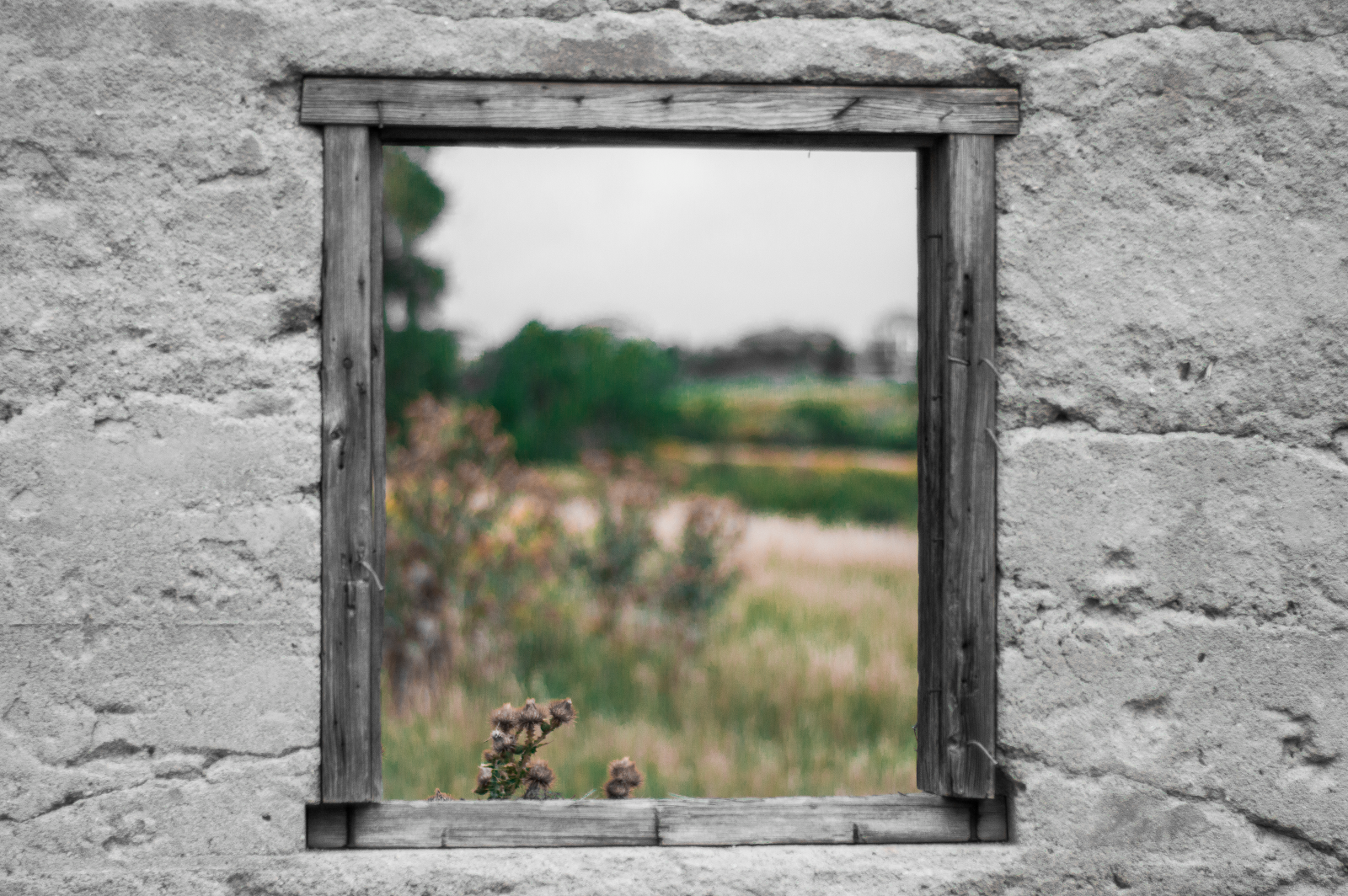
Above image was from my phone. The one below was a free image found on Google search.
To review, your post must have:
- Title
- Poem
- Label to the right with first name last name and the word "poetry"
- Image (from your phone or found on Google under "free to use or share.")
When you are done, you can share the link to this blog to your family and friends and they can check out your poem! I will also add a link to our class website when most of the poems are entered into the blog.
Have fun publishing your poem!